
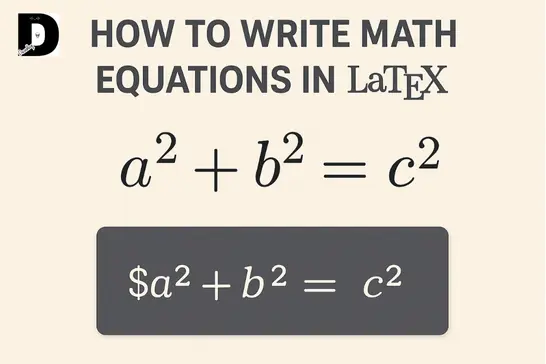
When I started writing my Gold Price Prediction minor project report, the hardest part wasn’t building the model — it was formatting the math.
Equations that looked perfectly fine in my notebook became messy in Word. Fractions were misaligned, subscripts floated around, and matrices were painful to edit. The report technically worked, but it didn’t look academic.
That frustration is what pushed me to learn how to actually write math equations in LaTeX — not just copy commands from Stack Overflow, but understand how LaTeX handles mathematical notation.
I won’t sugarcoat it. The first time I saw LaTeX math syntax, it felt like an alien language. Backslashes everywhere, curly braces I didn’t understand, random errors when I missed a single character.
But once the basics clicked, I never wanted to use Word’s equation editor again.
This guide shows how I write math equations in LaTeX for student project reports, step by step — from simple formulas to structured equations that look clean, readable, and professional.
Why I Use LaTeX for Math (As a Student)
I’m not writing a PhD thesis. I’m a Computer Engineering student, and most of my work involves:
- Minor and major project reports
- Assignments with equations
- Machine learning documentation
- Technical write-ups for college submissions
So why bother with LaTeX?
Because formatting affects evaluation.
From my experience:
- Messy equations = harder to read
- Inconsistent symbols = confusion for reviewers
- Poor alignment = looks rushed, even if the logic is correct
LaTeX fixes all of this.
Once you write an equation correctly:
- it stays consistent throughout the document
- spacing and alignment are handled automatically
- the final PDF actually looks academic
If you’re completely new to LaTeX itself, start with Writing Your First LaTeX Document before diving into math-heavy content.
Math Mode: The One Concept You Must Understand
In LaTeX, you can’t write math like normal text. You have to tell LaTeX:
“This is math now.”
There are two types of math mode.
Inline Math (Inside Sentences)
Used when equations appear within text:
The loss function is defined as $L = (y - \hat{y})^2$.
This is what I use when explaining formulas inside paragraphs.
Display Math (Standalone Equations)
Used when the equation needs emphasis or clarity:
\[
L = (y - \hat{y})^2
\]
Avoid using $$ ... $$.
Use \[ ... \] instead — it behaves better with modern LaTeX packages and spacing.
If you want to understand how math fits into overall document structure, see my guide on Page Layout in LaTeX.
Core Math Commands You’ll Use All the Time
You don’t need to memorize hundreds of commands. These cover most student project needs.
Superscripts and Subscripts
x^2
x^{10}
a_i
x_{max}
Braces are required when the exponent or subscript has more than one character.
Fractions
\frac{a}{b}
Inline fractions can look small. If readability matters, especially in explanations:
\dfrac{a}{b}
Square Roots
\sqrt{x}
\sqrt[3]{8}
Greek Letters (Very Common in ML)
\alpha \beta \gamma \theta \lambda \pi \sigma
Capital versions exist too:
\Gamma \Delta \Sigma
For a full list, refer to Basic LaTeX Math Commands.
A Real Equation I Used in My Project
This is the exact RMSE formula I used in my Gold Price Prediction project:
\[
\text{RMSE} = \sqrt{\frac{1}{n}
\sum_{i=1}^{n} (y_i - \hat{y}_i)^2}
\]
Writing this in LaTeX ensured:
- consistent notation across the report
- clean alignment in the final PDF
- no formatting issues during submission
This matters more than people think — reviewers notice clarity.
If you’re documenting ML projects, this pairs well with Machine Learning Performance Metrics.
Integrals, Summations, and Limits (They’re Not That Scary)
Integrals
\int_0^\infty e^{-x} \, dx
The \, adds a small space before dx. It’s optional, but looks cleaner.
Summations
\sum_{i=1}^{n} i^2
Limits
\lim_{x \to 0} \frac{\sin x}{x} = 1
Notice the pattern:
\command_{lower}^{upper}
Once you see that, most math commands start making sense.
Multi-Line Equations (Use This, Not Guesswork)
Add this to your preamble:
\usepackage{amsmath}
Then:
\begin{align}
a + b &= c \\
x^2 + y^2 &= z^2
\end{align}
&defines alignment points\\creates new lines
I use this heavily in project reports when explaining multiple steps.
Matrices (Without the Headache)
\begin{bmatrix}
1 & 2 & 3 \\
4 & 5 & 6 \\
7 & 8 & 9
\end{bmatrix}
Other options:
pmatrix→ parenthesesvmatrix→ vertical bars
For more depth, see Matrices in LaTeX.
Piecewise Functions
f(x) =
\begin{cases}
x^2 & \text{if } x \ge 0 \\
-x  & \text{if } x < 0
\end{cases}
The \text{} command lets you write readable text inside math mode.
Mistakes I Actually Made (Learn From These)
1. Forgetting to Close Environments
I once forgot \end{align} the night before submission.
LaTeX exploded with errors. Lesson learned: always match \begin and \end.
See Common LaTeX Errors and Fixes if this happens.
2. Using * for Multiplication
Use:
\cdot
or
\times
Math ≠ programming syntax.
3. Ignoring Scalable Parentheses
Bad:
(\frac{a}{b})
Good:
\left(\frac{a}{b}\right)
LaTeX automatically resizes them.
Tools That Helped Me Learn Faster
- Overleaf — Online LaTeX editor with live preview
- Detexify — Draw a symbol, get the LaTeX command
- Mathpix Snip — Convert screenshots into LaTeX equations
These are industry-standard tools and worth using.
My Math-in-LaTeX Checklist (Before Submission)
Before submitting any project report, I check:
- All equations compile without warnings
- Multi-line equations use
align - Inline math is readable
- No equation overflows margins
- Symbols are consistent throughout
This habit saved me multiple resubmissions.
Final Thoughts
LaTeX math feels difficult at first — everyone Googles commands at 2 AM.
But once it clicks, writing equations becomes faster than clicking through Word menus.
My first project report took hours to format.
Now I reuse templates and focus on actual content, not formatting fights.
Start small:
- one inline equation
- one display equation
- one aligned block
Build from there. You’ll get comfortable faster than you expect.
Keep Learning
- Writing Your First LaTeX Document
- Page Layout in LaTeX
- Basic LaTeX Commands
- LaTeX Templates for Reports
If you’re documenting real projects, LaTeX is worth the effort.